C/AL to AL v4: Introducing Data Migration Studio
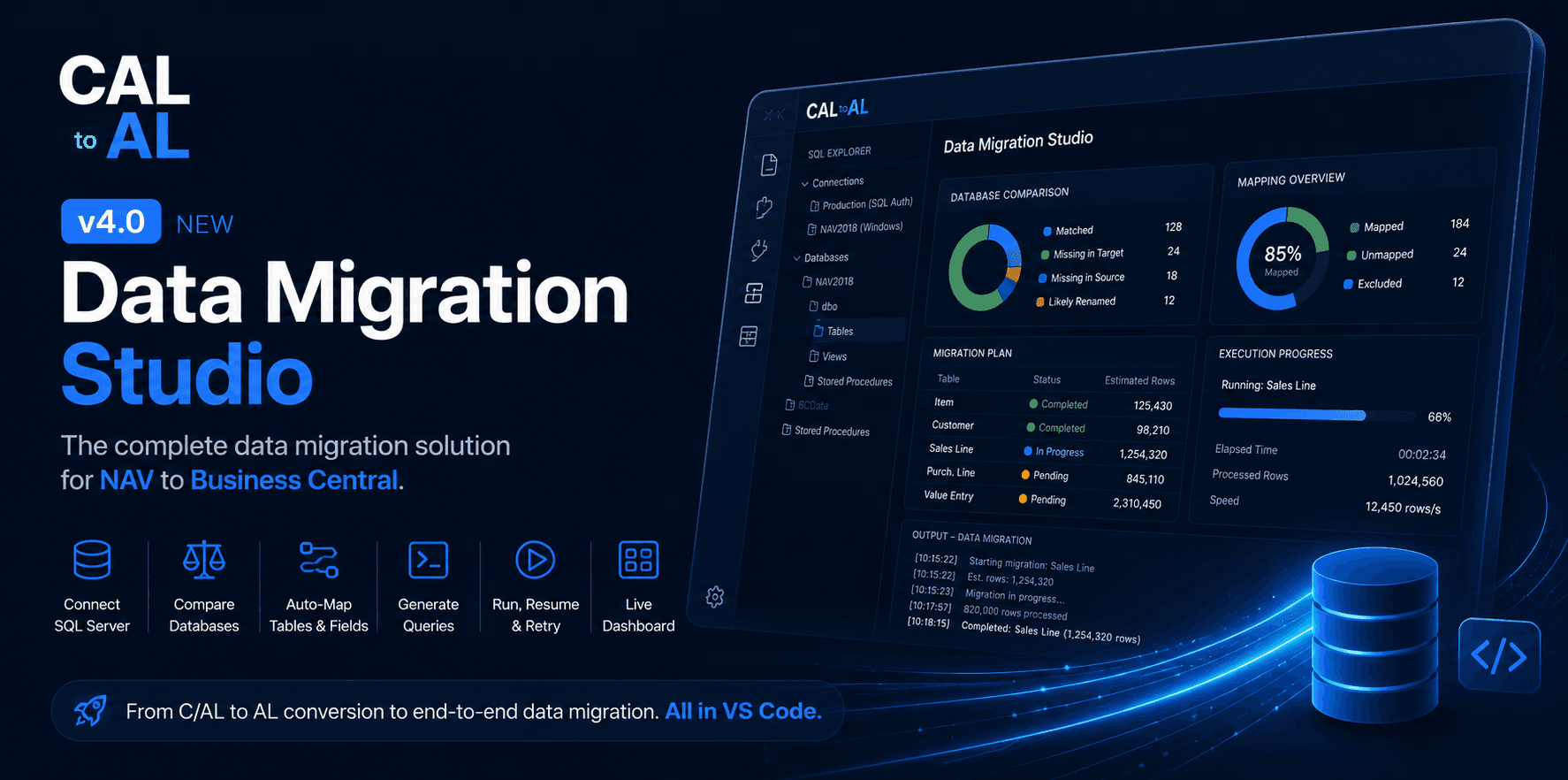
CAL to AL v4.0 introduces Data Migration Studio — connect SQL Server, compare databases, auto-map tables and fields, generate queries, and run end-to-end NAV to Business Central data migration inside VS Code.
C/AL to AL v4.0 is more than another improvement to the conversion process.
When migrating a legacy NAV solution to modern Business Central, converting the objects from C/AL to AL is only one part of the problem.
The real challenge often comes next:
What happens to the data?
Tables need to be mapped. Fields need to be compared. Databases need to be analyzed. Data needs to be transformed and moved safely.
That's why CAL to AL v4.0 introduces Data Migration Studio — turning the extension from a C/AL-to-AL converter into a more complete NAV/Business Central migration toolkit, directly inside VS Code.
From C/AL to AL conversion to end-to-end data migration — all in VS Code.
Get the extension
v4.0 is available on the Visual Studio Marketplace.
Install CAL to AL from the marketplace, then open the Data Migration Studio workflow from VS Code.
What is Data Migration Studio?
Data Migration Studio is designed to help you go from:
SQL Server → Database Analysis → Mapping → Migration Plan → Data Migration
without having to constantly switch between different tools.
You can connect to your SQL Server databases, explore their structure, compare source and target databases, automatically map tables and fields, generate migration queries, and execute the migration — all from your editor.
1. SQL Explorer
Data Migration Studio starts with the database.
You can save multiple SQL Server connections and connect using either SQL Authentication or Windows/NTLM authentication.
Connection passwords are stored securely using VS Code Secret Storage.
From the Activity Bar, you can browse:
- Databases
- Schemas
- Tables
- Views
- Stored Procedures
This gives you a familiar way to explore your NAV/Business Central databases before starting a migration.
2. Table Preview & Export
Need to inspect the actual data before migrating it?
Open any table in the data grid and work with the data directly.
The preview supports:
- Paging
- Search
- Column filtering
- Sorting
- Metadata inspection
The metadata view provides additional information such as:
- SQL data type
- Business Central data type
- Nullable
- Identity
- Primary keys
- Foreign keys
- Default values
You can also export large datasets to CSV, Excel, or JSON using streaming, making it practical for large NAV databases.
3. Database Metadata Scanner
A migration isn't only about looking at rows.
You need to understand the structure behind those rows.
The metadata scanner builds a structural model of your database and enriches it with NAV/Business Central metadata, including:
- BC table IDs
DataPerCompany- BC data types
- Keys
- Relationships
- Row counts
This creates a foundation that the comparison and mapping engines can use later in the migration process.
4. Database Comparison
One of the first questions during a migration is:
How different are these two databases?
Data Migration Studio can compare source and target databases and show:
- Tables existing in both databases
- Tables missing from the target
- Tables missing from the source
- Potentially renamed tables
- Field-level differences
The comparison goes beyond names.
You can drill down into differences such as:
- SQL type
- BC type
- Nullable
- Primary key
- Field structure
For potentially renamed objects, the comparison engine also uses fuzzy matching to identify likely relationships.
5. Smart Mapping Engine
Manually mapping hundreds of tables and fields can quickly become painful.
The Smart Mapping Engine helps automate that process.
Mappings are matched using several levels of confidence:
BC ID → Name → Fuzzy Similarity
You can then review the proposed mappings and override them when necessary.
The migration dashboard allows you to include or exclude tables and fields, while mappings are persisted in:
.cal2al/mappings.json
This means your mapping decisions become part of the migration project rather than something you have to recreate every time.
6. Migration Queries & Plan
Once the mappings are ready, Data Migration Studio can generate migration queries such as:
INSERT INTO ...
SELECT ...
FROM ...
The generated queries support identity handling and provide a hook for applying transformation rules when the source and target structures aren't identical.
The migration process is also represented by a migration plan:
.cal2al/migration-plan.json
The plan keeps track of information such as:
- Generated queries
- Estimated rows
- Execution status
- Execution time
- Retries
- Errors
It also acts as an execution log, giving you a persistent record of what happened during the migration.
7. Execution Engine
Once everything is mapped and reviewed, it's time to move the data.
The execution engine lets you:
- Run a single table
- Run a selection of tables
- Run the complete migration
- Resume pending migrations
- Retry failed migrations
- Stop execution
Transactions are used to roll back failed operations where appropriate.
For cross-server migrations, the engine can use streamed batch bulk copy to efficiently move large amounts of data without loading everything into memory at once.
And while the migration is running, you can follow its progress directly from the Data Migration output channel.
8. Migration Dashboard
Everything comes together in the Migration Dashboard.
The dashboard provides a central place to monitor and control the migration.
It includes:
- Live migration status
- Progress indicators
- Multi-selection
- SQL preview
- Field mapping editor
- Execution reports
- HTML reports
- CSV reports
Instead of treating migration as a collection of scripts, the dashboard gives you a visual workflow for managing the entire process.
Download CAL to AL v4.0
- Visual Studio Marketplace: CAL to AL
From C/AL conversion to end-to-end data migration — all inside VS Code.
Discussion
Sign in to join the discussion.